Google still requires a phone number for most new account creations in 2026. Whether you need a fresh Gmail for work, testing, privacy, or you have hit a verification wall after too many accounts, you do not have to use your real phone number anymore.
The simplest and most reliable solution is to use a temporary USA phone number from VerifySMS. You create a free account, add as little as $10, and buy a dedicated number for Google. Each Google account costs just $1.05, and the verification code stays active for a full 15 minutes, more than enough time to complete the entire setup. The process takes under ten minutes once you are ready.
Below is a clear, step-by-step guide that walks you through everything so you can create your new Google account today without handing over your personal digits.
Step 1: Create Your Account on VerifySMS
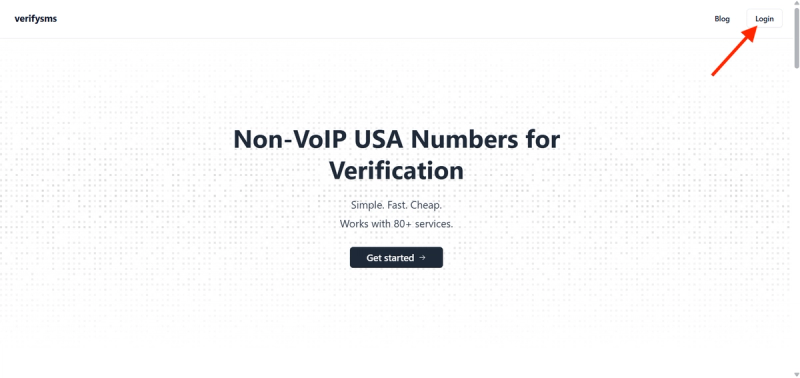
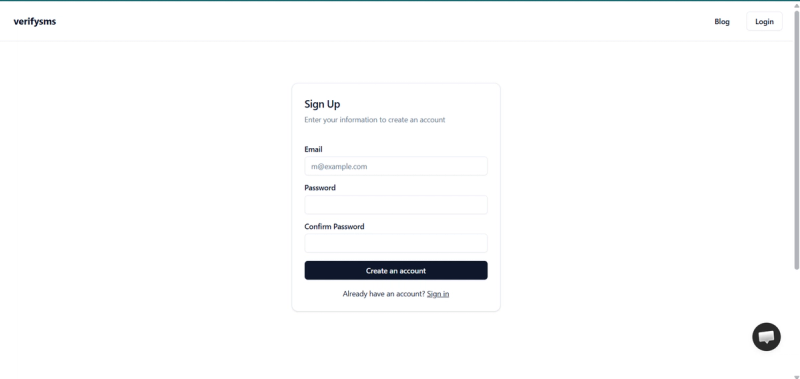
Open your browser and go to https://verifysms.io/. Click on “Get Started” or the sign-up button. The form is simple — just enter a valid email address and create a strong password. No unnecessary questions, no extra personal details.
Once you confirm your email, you land straight on the clean dashboard. Look for the “Add Funds” or “Deposit” button. You can start with just $10 using a card, crypto, or supported e-wallets. The funds appear instantly with no hidden deposit fees.
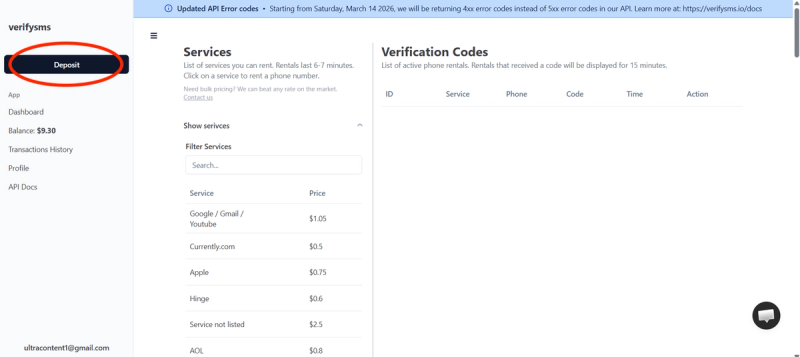
That small $10 balance already gives you enough for multiple Google accounts, so you are fully prepared whether you need one or several.
Step 2: Buy a Temporary USA Phone Number for Google
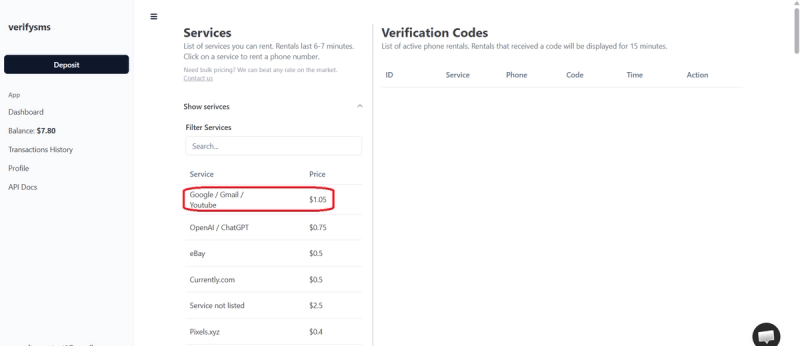
On the dashboard, click “Buy Number” or go to the Services section. Search for “Google” in the list of supported platforms. You will see the exact price clearly displayed — $1.05 per Google account.
VerifySMS only provides real non-VoIP USA phone numbers, which is why they work so reliably with Google. The number appears on your screen within seconds. Copy it immediately because you will need it right away for the sign-up process.
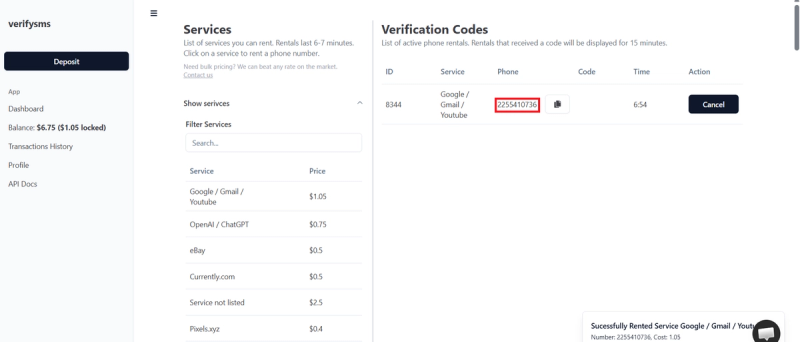
If you plan to create several accounts, you can buy multiple numbers one after another. All your numbers stay neatly organised in the same dashboard.
Step 3: Start Creating Your Google Account
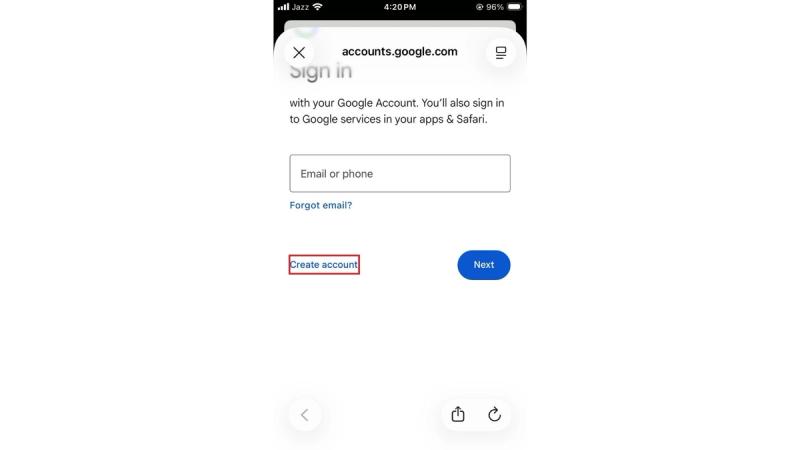
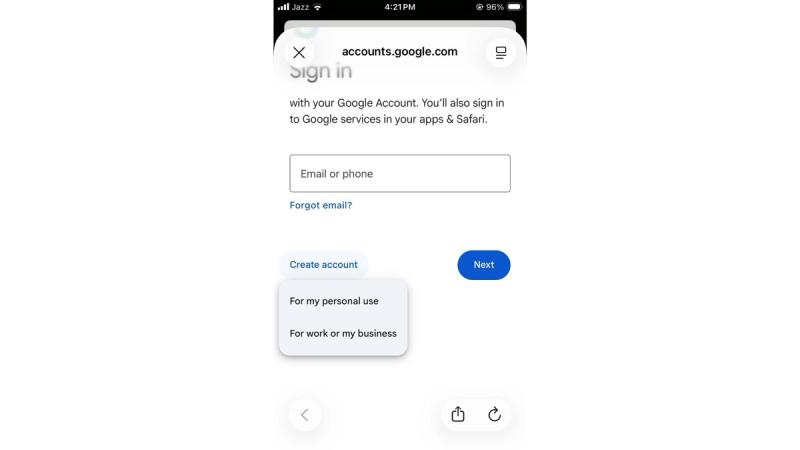
Go to accounts.google.com or open the Gmail app and click “Create account”. Choose “For myself” or “For my business” depending on your needs.
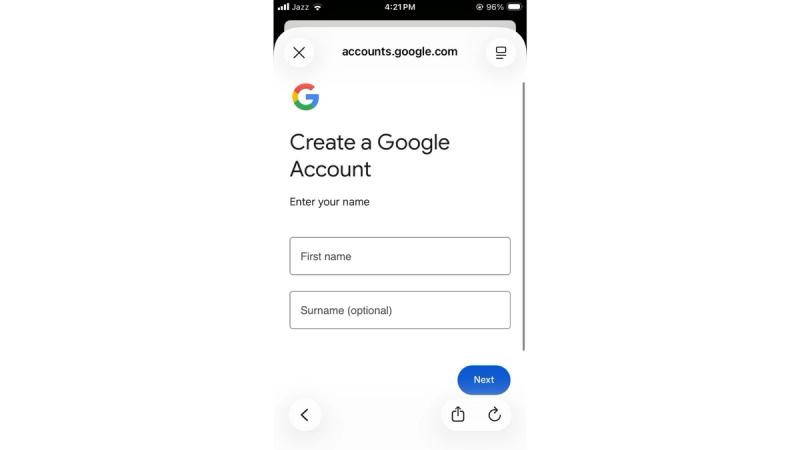
Add your first and last name.
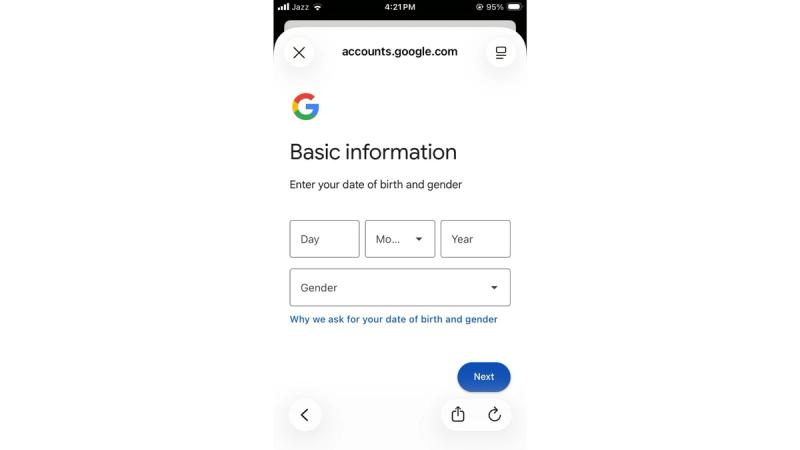
And then it will ask for your date of birth and gender. Answer accordingly.
When Google asks for your phone number, paste the temporary USA number you just bought from VerifySMS.
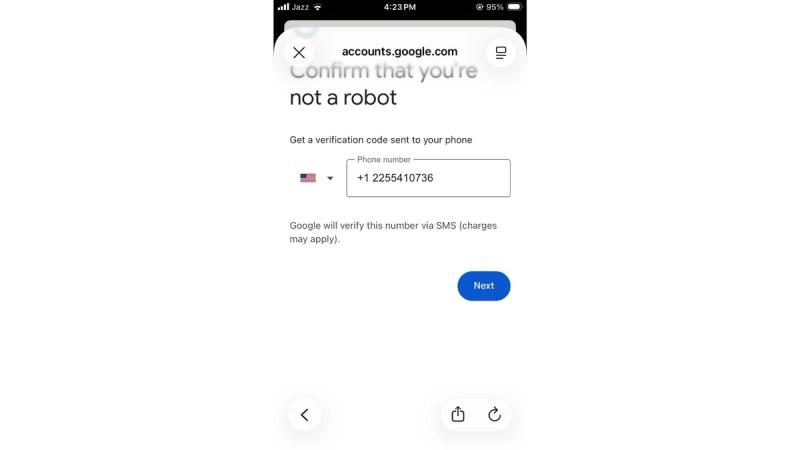
Make sure you include the correct country code (+1 for USA).
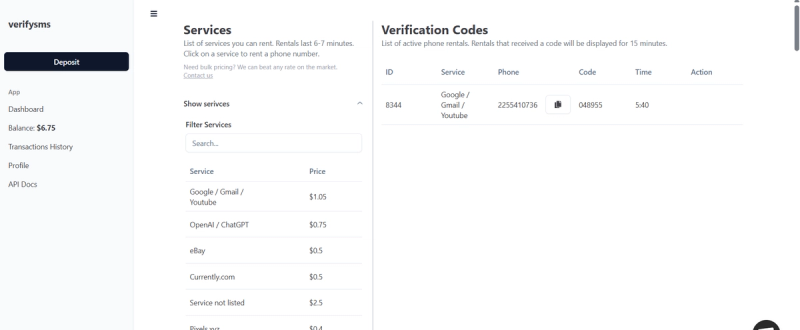
Google will send a six-digit verification code to that number almost immediately. Switch back to your VerifySMS dashboard. Refresh the page if needed, and the code will appear right in the same window where you purchased the number.
You have 15 minutes to use the code, but in practice you will finish this step in under a minute.
Step 4: Enter the Code and Complete Setup
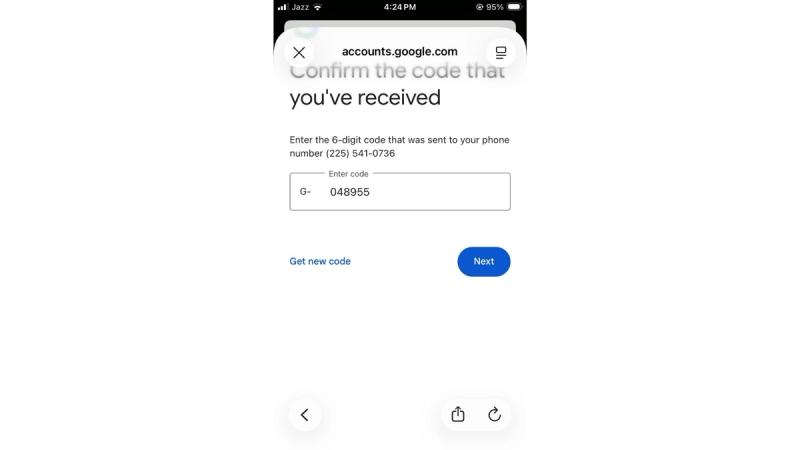
Copy the six-digit code from VerifySMS and paste it into the Google verification screen. Google confirms the number instantly and moves you forward.
Next, you will be asked to add a recovery email address. Use a fresh Gmail or any email you control. This step is helpful if you ever need to recover the account later.
Then fill in the basic details: your name, date of birth, and gender. You can skip some optional fields for now and add them later if you want.
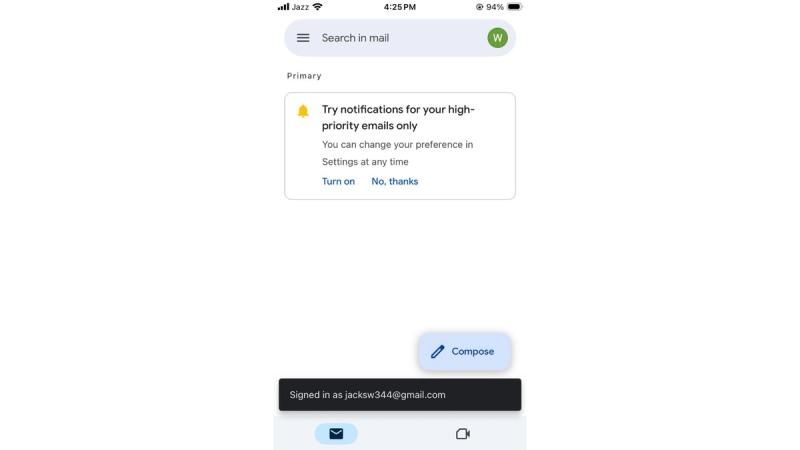
Once you hit continue, your new Google account is ready. You now have full access to Gmail, Drive, YouTube, and all other Google services without ever using your real phone number.
Step 5: Quick Tips to Keep Your Google Account Smooth
After setup, go into your Google account settings and enable two-factor authentication using the new account (or an authenticator app) for extra security. If you ever get locked out or need another account, simply return to VerifySMS, buy a new number for $1.05, and repeat the same quick process.
The dashboard keeps a clear history of all your numbers, so everything stays organised and easy to manage.
Why VerifySMS Works Better Than Free Options
Free temporary number sites often fail with Google because the platform quickly detects and blocks them. VerifySMS uses premium, fresh non-VoIP USA numbers that Google accepts reliably every time.
The clean and simple interface makes the whole process fast, while the powerful API (with clear arguments, meaningful error messages, sample code, and CLI commands) is perfect for developers who need to create accounts at scale. Most traffic on the platform actually comes from API requests, which shows how trusted and efficient the service is.
You spend less than the price of a coffee and get full, private access to a working Google account with no risk to your personal phone line.
Final Thoughts
Setting up a Google account without a phone number is now straightforward and affordable. With VerifySMS, you stay in complete control of your privacy while still getting full access to everything Google offers.
Head over to https://verifysms.io/, create your free account, add $10, and buy your first number for just $1.05. In less than ten minutes you will have a brand new Google account ready to use.
No real phone number. No hassle. Just a clean, reliable solution that works every time.
FAQs
Can I create multiple Google accounts with VerifySMS?
Yes. You can buy as many USA numbers as you need. Most users top up $10 once and create several accounts over time using the same dashboard.
How long does the verification code last?
The code stays active for 15 minutes after it is sent. In practice, you will complete the sign-up long before it expires.
Will Google detect the number as virtual?
VerifySMS uses real non-VoIP USA numbers, which is why they work reliably with Google. Success rates are very high compared to free services.
Is it safe to use for important accounts?
It is perfectly safe for testing, work, or secondary accounts. For your main personal account, many people still prefer their real number, but for additional profiles VerifySMS is an excellent privacy-friendly choice.
What if the code does not arrive?
If the code does not appear within 30 seconds, simply click “Request new code” on Google and refresh your VerifySMS dashboard. The system is reliable, but occasional delays can happen.
Do I need any technical knowledge to use the service?
No. The dashboard is clean and beginner-friendly. If you are a developer, the powerful API with straightforward auth and sample code makes bulk account creation even easier.